
How to Test and Interpret Your Home Internet Speed

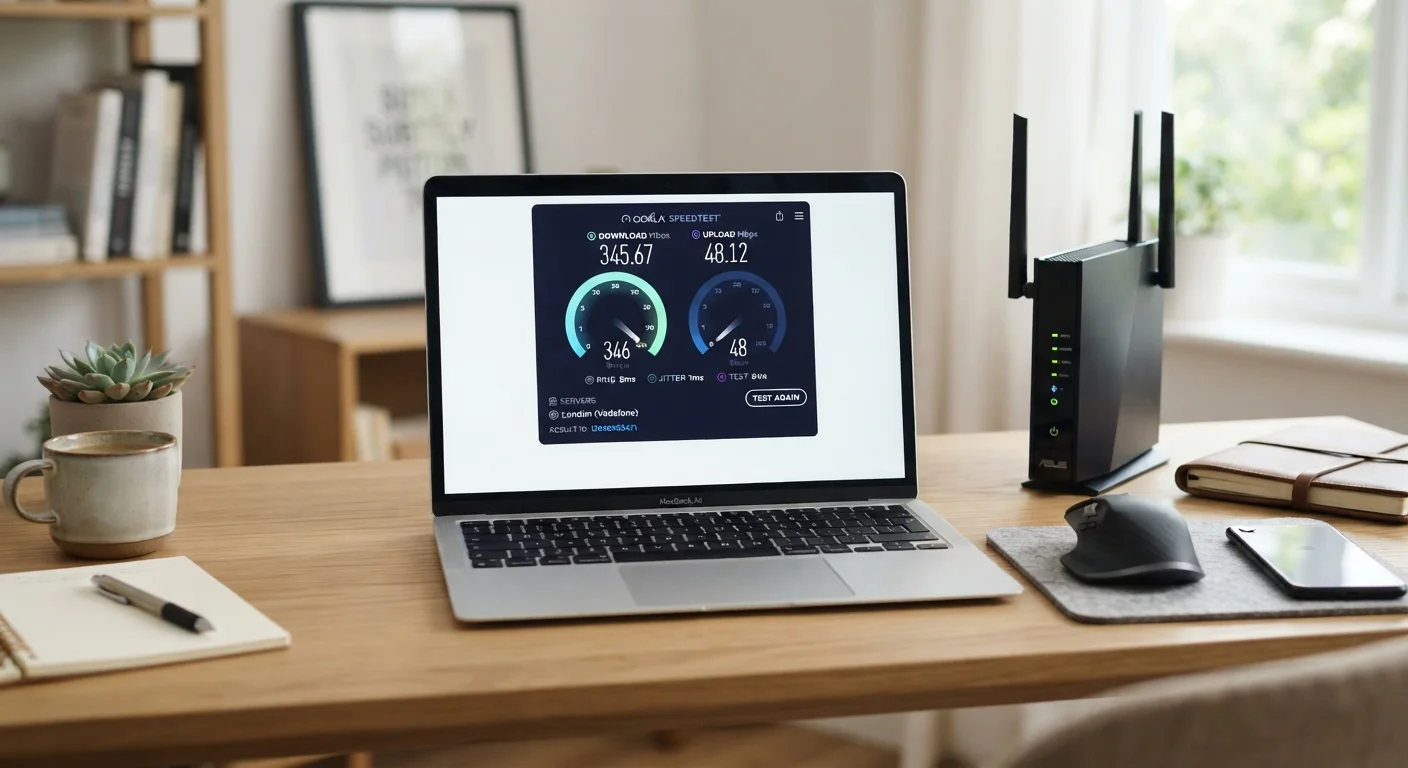
Photo: ScoutAnswers.com | Blogs That Ignite Curiosity editorial
Key Takeaways
- A wired Ethernet connection produces more accurate speed test results than Wi-Fi.
- Download speed affects streaming and browsing; upload speed matters for video calls and cloud backups.
- Latency and jitter are as important as raw Mbps for gaming and video conferencing.
- Running multiple tests at different times reveals consistent patterns, not just one-time snapshots.
- Results significantly below your plan's advertised speed are a valid reason to contact your ISP.
Why Speed Tests Are Frequently Misread
Speed tests are useful diagnostic tools, but only when run under the right conditions and interpreted with appropriate context. Many readers run a single test over Wi-Fi, see a number lower than expected, and immediately assume their ISP is at fault - or conversely, see a high number and conclude everything is fine when their real-world experience tells a different story.
Download speed - measured in Mbps (megabits per second) - describes how quickly data moves from the internet to your device. It determines how fast web pages load, how smoothly video streams, and how quickly large files arrive. Upload speed governs the reverse: how fast your device sends data outward. This affects video call quality, cloud storage syncing, and sharing large files. For a grounding in the infrastructure that delivers these speeds, see how fiber, cable, DSL, and fixed wireless differ.
Ping (latency) and jitter often go unmeasured by casual users, yet they directly affect the feel of real-time activities. A 200 Mbps connection with 150 ms of latency will feel worse for gaming or video calls than a 50 Mbps connection with 15 ms of latency.
Check Your Plan's Advertised Speeds First
What You Need Before You Start
Accurate testing requires minimal preparation, but skipping these steps introduces variables that skew your results.
What you will need
Ethernet cable
Connects your computer directly to the router or modem for a stable, interference-free test.
Web-based speed test tool (e.g., Speedtest.net, Fast.com)
Measures your download speed, upload speed, ping, and jitter from a browser.
Smartphone or secondary device
Useful for comparing Wi-Fi speed results against your wired baseline.
ISP account portal or service agreement
Shows your plan's advertised speeds so you have a benchmark for comparison.
If you are new to home internet concepts and unfamiliar with terms like modem, router, or Mbps, the first-timer's primer on home internet provides clear definitions before you proceed.
Wi-Fi Walls Can Hide Your Real Speed
Step-by-Step: Running an Accurate Speed Test
Follow these steps in order. Cutting corners - particularly skipping the Ethernet connection - is the most common reason speed test results mislead readers.
Prepare your testing environment
Close all applications and browser tabs that use bandwidth - streaming services, cloud backup clients, software update managers, and video call apps. Pause any downloads. Ask others in the household to minimize internet use during the test. Background activity artificially suppresses your measured speeds.
Connect directly via Ethernet
Plug one end of an Ethernet cable into a LAN port on your router or modem and the other into your computer's Ethernet port. If your laptop lacks a built-in port, a USB-to-Ethernet adapter will work. Disable Wi-Fi on your device so all traffic travels over the wired connection exclusively.
Run the speed test
Open a browser and navigate to a reputable speed test tool. Click the start or Go button and let the test complete without interacting with the browser. The tool will measure your download speed (data flowing to your device), upload speed (data sent from your device), ping (round-trip response time in milliseconds), and often jitter (variation in ping over time).
Record and repeat
Write down your results - download Mbps, upload Mbps, ping in ms, and jitter in ms. Repeat the test at least twice more, spacing tests several hours apart across the day. Network congestion typically peaks during evening hours (roughly 7-11 PM), so an evening test alongside a morning test reveals whether your connection degrades under load.
Interpret your results
Compare your average download and upload speeds against your plan's advertised figures. Industry guidance generally accepts results within 20-25% below the advertised maximum as within normal variance. Consistently landing 40-50% or more below your tier warrants follow-up. For context on what different speed tiers actually support day-to-day, see common speed misconceptions explained.
Evaluate latency separately: for general browsing, ping under 100 ms is acceptable; for real-time gaming or video calls, under 30-40 ms is preferable. High jitter (above 30 ms) causes choppy video calls even when raw speeds look fine.
Contact your ISP if results are consistently low
If your wired test results are persistently and significantly below your subscribed tier across multiple times of day, document your findings and contact your ISP's technical support. Share the dates, times, and specific results. Providers are generally obligated to investigate and may dispatch a technician, replace faulty equipment, or adjust your line configuration.
One Test Is Not Enough
When Your Results Don't Match Your Expectations
If your wired results match your plan's speeds but your Wi-Fi performance feels slow, the bottleneck is almost certainly your home network rather than your ISP. Router placement, channel congestion, and hardware age are the primary culprits. Why your Wi-Fi feels slow even on a fast plan walks through those causes in detail.
Conversely, if wired tests consistently fall far short of your advertised tier, you have documented evidence to bring to your ISP. Providers may troubleshoot remotely, replace modem firmware, or dispatch a field technician. Keep your test logs - dates, times, and Mbps figures - readily available when you call.
This article is for general informational purposes only. Internet performance varies based on many factors including your specific plan, hardware, and local infrastructure. Contact your ISP or a qualified technician for issues specific to your service.
The content on this site is for informational purposes only and is not a substitute for professional advice. Always consult a qualified professional for guidance specific to your situation.