
Why Your Smart Devices Keep Dropping Off the Network

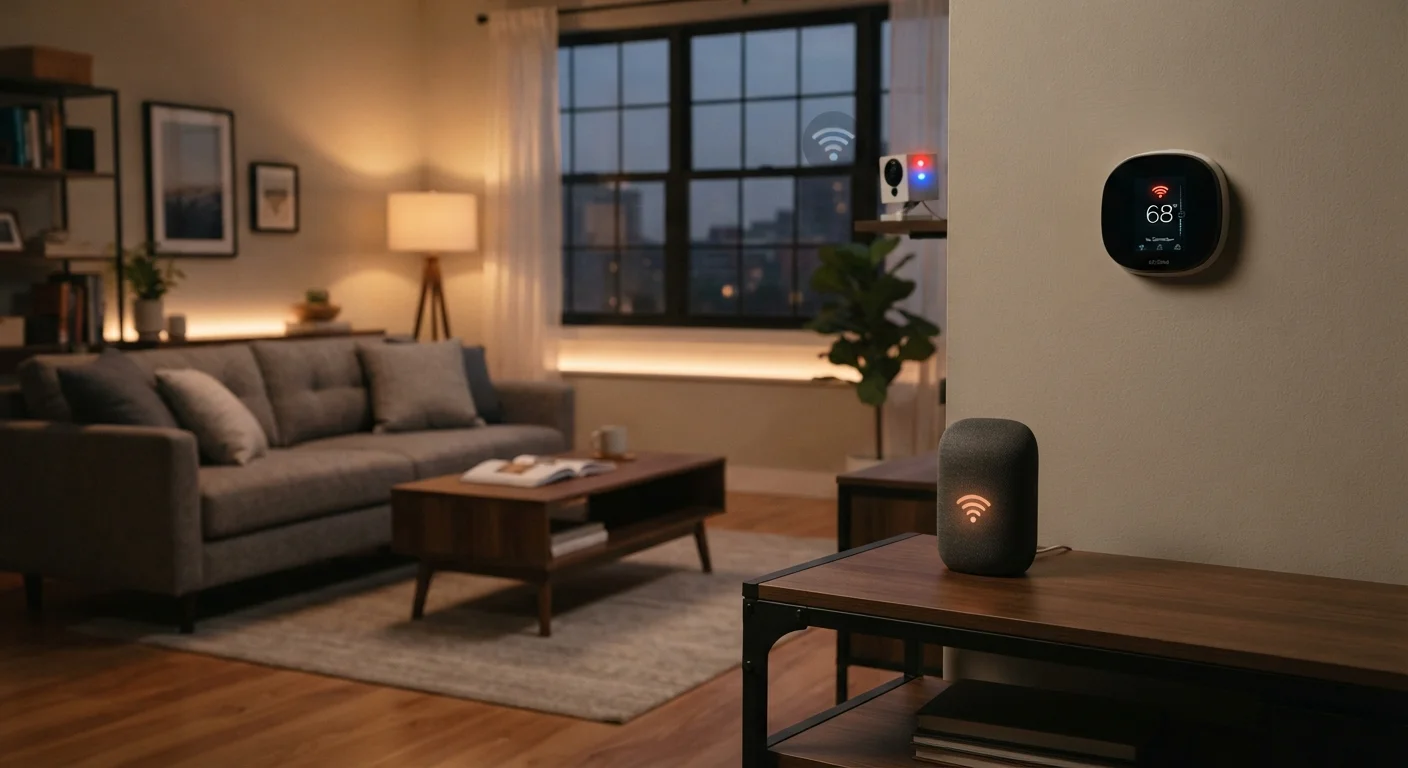
Photo: ScoutAnswers.com | Blogs That Ignite Curiosity editorial
Key Takeaways
- Most smart device dropoffs trace back to Wi-Fi band mismatches, router placement, or network congestion - not defective hardware.
- Placing too many devices on the same channel or band can cause interference that pushes devices offline.
- Outdated router firmware and IP address conflicts are often overlooked but easy-to-fix causes of disconnections.
- Mesh network gaps and inconsistent SSID naming can cause devices to lose their connection during roaming.
Why Smart Devices Disconnect More Than Other Gadgets
Smartphones and laptops rarely drop off your home network for long, but smart bulbs, thermostats, and security cameras seem to lose their connection regularly. The difference comes down to hardware design. Most smart home accessories use stripped-down Wi-Fi radios optimized for low power consumption, not for fighting through interference or managing band transitions. They're also stationary, which means they can't move closer to the router the way you instinctively do with your phone.
The result is a class of devices that's more sensitive to the network conditions around them - and more likely to fall off when those conditions aren't optimized. Managing a growing fleet of connected devices requires understanding not just how many devices you have, but how your network is handling them.
Connecting smart devices to the 5 GHz Wi-Fi band when they're designed for 2.4 GHz only.
Placing the router too far from smart devices or in a closed cabinet where signal is blocked.
Overloading a single Wi-Fi channel with too many competing devices.
Using inconsistent SSID or password settings across mesh nodes, causing roaming failures.
Never rebooting the router or allowing it to run continuously for months without a restart.
Common Configuration Mistakes That Cause Dropoffs
Most disconnection problems aren't hardware failures - they're configuration oversights. Band conflicts, channel congestion, and poor router placement account for the majority of smart device instability in homes. The good news is that these issues are addressable without buying new equipment.
16+
Average connected devices per U.S. household
According to Deloitte's Digital Media Trends survey, the average American household operates more than 16 connected devices, increasing competition for router resources.
2.4 GHz
Band required by most smart home sensors
The majority of low-power smart home accessories - including many plugs, sensors, and bulbs - are certified only for the 2.4 GHz band, which has longer range but lower maximum throughput than 5 GHz.
If you've already addressed placement and band settings but still see dropoffs, consider whether your router's DHCP address pool is large enough for your household. As device counts climb past a dozen, some routers begin running out of available IP addresses to assign - leading to silent connection failures.
IP Address Conflicts Can Silently Kill Connections
Network segmentation can also help. Keeping smart devices on a dedicated network reduces the chance that a single problematic device disrupts everything else. See how setting up a guest Wi-Fi network can add a layer of organization and reduce cross-device interference.
When It's Not Your Router - And When It Is
Intermittent internet outages from your ISP can mimic local network problems. Before spending time reconfiguring your router, confirm whether your modem's status lights show a healthy upstream connection, and whether devices across your home are affected simultaneously. Cloud-dependent smart devices - those that require an active internet connection to function - will go dark during any outage, not just a Wi-Fi issue. What happens to your smart home when the internet goes down explains which functions survive an outage and which depend entirely on a cloud connection.
Don't Overlook Firmware as a Connectivity Factor
If the problem is confirmed to be local, router placement, interference, and aging hardware are the most productive places to investigate. Reviewing your router's connected-device list can also reveal unauthorized devices consuming bandwidth. For broader home network hygiene, foundational network security practices provide a useful starting framework.
The content on this site is for informational purposes only and is not a substitute for professional advice. Always consult a qualified professional for guidance specific to your situation.