
Securing Your Home Network: Practices Every Household Should Follow

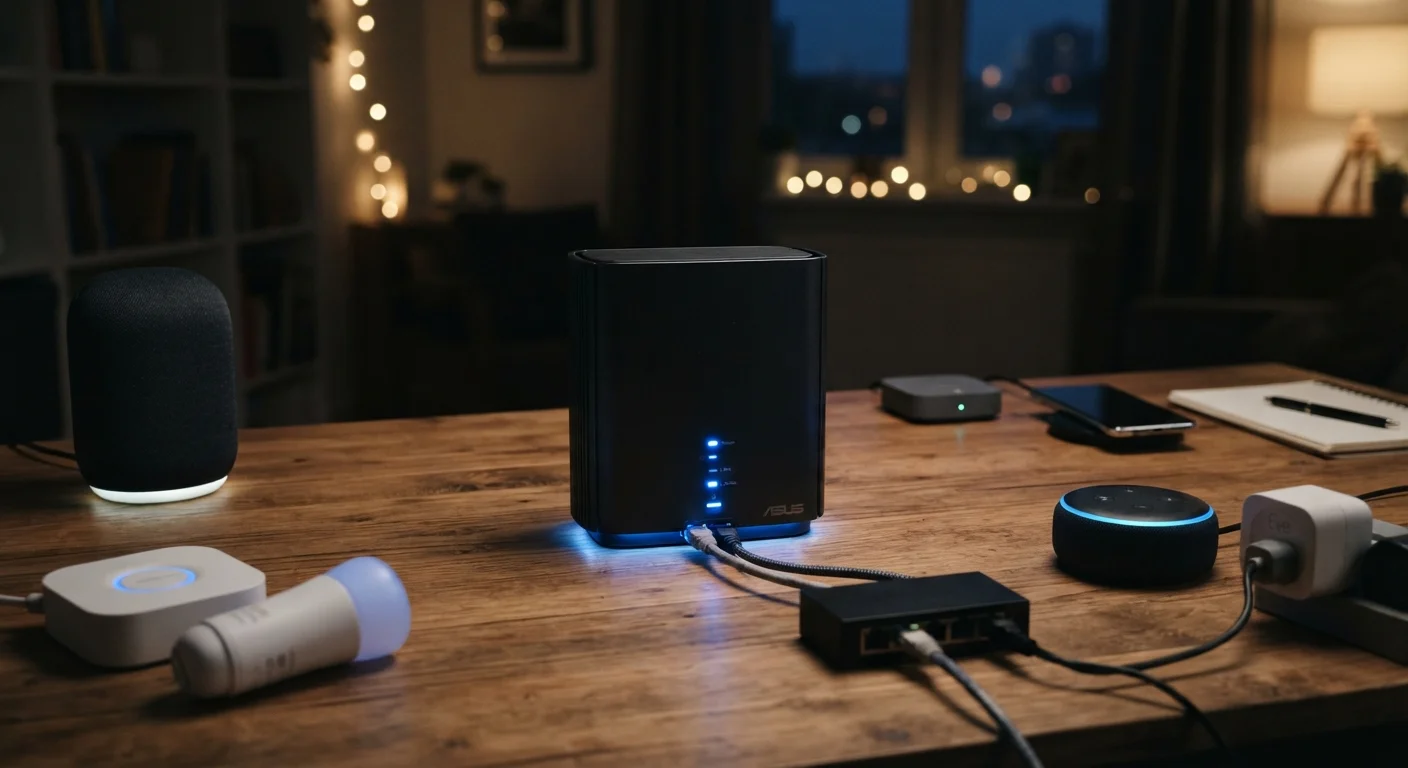
Photo: ScoutAnswers.com | Blogs That Ignite Curiosity editorial
Key Takeaways
- Changing your router's default password is the single most impactful first step in home network security.
- WPA3 encryption and guest network segmentation meaningfully reduce exposure to unauthorized access.
- Regular firmware updates patch known vulnerabilities that attackers actively exploit on home routers.
- Auditing which devices are connected to your network helps you spot unauthorized access early.
- Strong, unique Wi-Fi passwords and disabling legacy features like WPS reduce your attack surface.
Why Home Network Security Deserves Attention
Most households now run a dozen or more connected devices - phones, laptops, smart TVs, thermostats, doorbells, and voice assistants - all sharing a single home network. That network is the common thread linking your most sensitive data: financial accounts, personal files, and private communications.
The good news is that most realistic threats to home networks exploit predictable, correctable weaknesses. If you're new to home internet setup, the Home Internet from the Ground Up primer provides useful background on how your connection and equipment actually work. Understanding your setup makes it much easier to apply the practices below.
What 'Network Security' Actually Means at Home
The Core Practices That Actually Reduce Risk
Security guidance can feel overwhelming, but a small number of foundational steps eliminate the most common entry points. Prioritize these before worrying about more advanced configurations.
Replace all default router credentials immediately after setup
Enable WPA3 encryption (or WPA2-AES at minimum) on all Wi-Fi networks
Update your router's firmware regularly
Disable Wi-Fi Protected Setup (WPS)
Use a strong, unique passphrase for your Wi-Fi network
Segmenting Your Network for Smarter Protection
One of the most effective - and underused - tactics is keeping different categories of devices on separate network segments. Your personal laptop and phone carry fundamentally different risk profiles than a smart plug or a budget security camera from an unfamiliar brand.
A guest Wi-Fi network accomplishes this separation without requiring advanced networking knowledge. Our guide on setting up a guest Wi-Fi network for smart devices walks through how this works in practice. By isolating IoT devices onto a separate SSID (the technical term for a named Wi-Fi network - see our home internet glossary for more terminology), you limit how far an attacker can move if one device is compromised.
If you're managing a growing number of connected gadgets, the practices for managing a growing fleet of connected devices article covers how to keep track of what's on your network and what each device needs.
Staying Ahead: Ongoing Habits That Sustain Security
One-time configuration changes help, but network security is an ongoing practice. Firmware updates are the clearest example: router manufacturers release patches when vulnerabilities are discovered, and those patches only protect you if you install them. Many routers now support automatic updates - enabling this setting removes one more thing to remember.
Periodically reviewing your router's connected device list is another habit worth building. If a device appears that you don't recognize, it warrants investigation. For a structured approach to reviewing your overall connected-home security posture, the smart home security audit checklist provides a comprehensive framework.
“The vast majority of home router compromises involve default credentials that were never changed. The security community has been saying this for decades - the guidance hasn't changed because the problem hasn't changed.”
— Cybersecurity and Infrastructure Security Agency (CISA), U.S. federal cybersecurity agency
Finally, remember that network security and network performance are related. Unauthorized users on your network consume bandwidth and can affect speeds. If you've noticed unexplained slowdowns, our piece on why home Wi-Fi feels slow even on a fast plan covers both performance and security angles worth checking.
83%
Home routers with known vulnerabilities
According to an IoT security analysis by Broadband Genie (2023), the majority of home routers have never had their default admin password changed.
34%
Households that have never updated router firmware
A 2023 Broadband Genie consumer survey found roughly a third of broadband users had never updated their router's firmware since installation.
The content on this site is for informational purposes only and is not a substitute for professional advice. Always consult a qualified professional for guidance specific to your situation.